
Deep Search: find and replace across your whole Access database
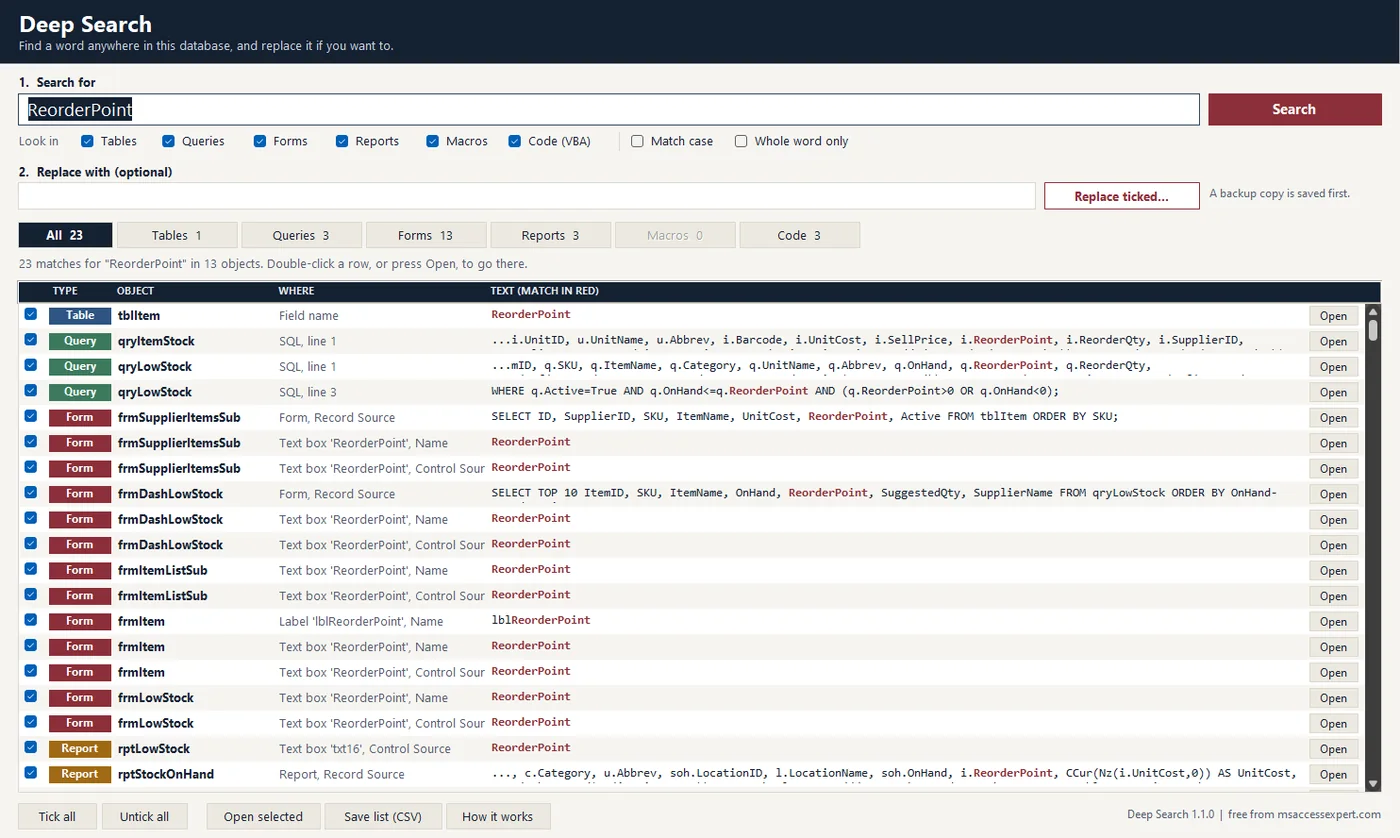
Type a field name, a table name or any word. Deep Search shows every query, form, report, macro and line of code that uses it, and can replace it everywhere after saving a backup copy.
Everything Access's own Find leaves out
Ctrl+F in Access looks in one object at a time. Deep Search reads the design of the whole file in one pass.
-
LOOK-01
Tables
Table and field names, captions, descriptions, default values, validation rules, lookup row sources and relationships.
-
LOOK-02
Queries
Query names, descriptions and every line of SQL.
-
LOOK-03
Forms
Every property of the form, its sections and its controls: record source, control source, row source, captions, tags and event settings.
-
LOOK-04
Reports
The same as forms, including grouping sections and calculated text boxes.
-
LOOK-05
Macros
Macro names, actions and arguments, plus macros embedded in form and report events.
-
LOOK-06
Code
Every line of VBA in standard modules, class modules, forms and reports, with the procedure name.
Install once, then it is two clicks away
Install
- Download and unzip. Keep DeepSearch.accda somewhere permanent, such as Documents. If Windows marked the file as blocked, right-click it, choose Properties, tick Unblock and press OK.
- Add it in Access. Open any database, then go to Database Tools > Add-ins > Add-in Manager > Add New, and pick the file.
- Start it. Database Tools > Add-ins > Deep Search. It opens as a tab inside Access.
Find
Type the word and press Enter. Each result shows a coloured type badge, the object, where in the object the word sits (for example "Text box 'txtTotal', Control Source" or "Line 120, cmdSave_Click"), and the text with the match in red. The chips above the list filter it to one kind of object. Double-click a row, or press Open, and Access opens that object in design view. Code results open the module with the line selected.
Whole word only is the option to use for names. It finds Qty and skips QtyOrdered.
Replace
Every row that can be changed has a tick. Untick the ones you want to keep, type the new text, and press Replace ticked. Deep Search first saves a backup copy of the database next to the original, then makes the changes in a safe order: code and SQL first, form and report properties next, and the names of fields, tables and objects last.
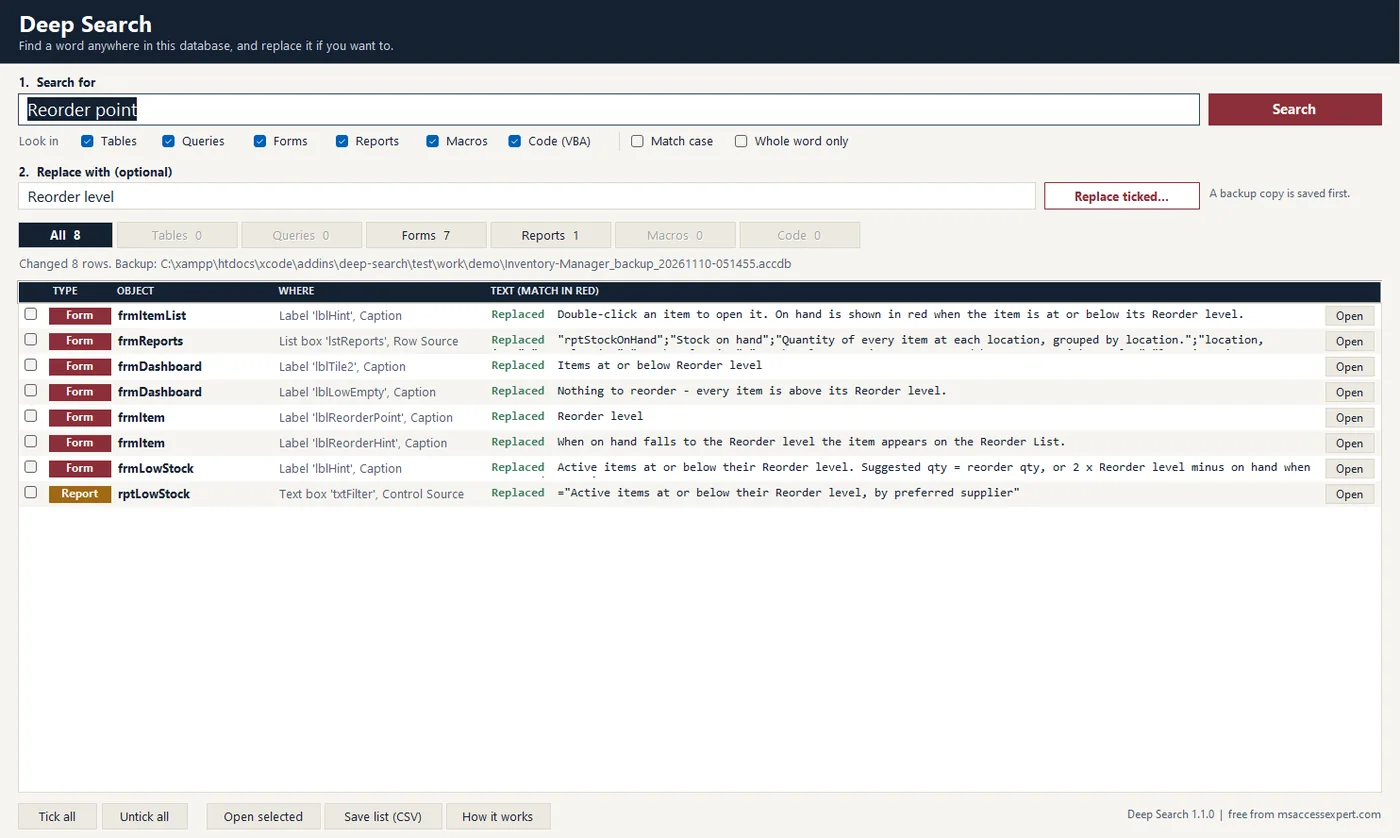
Close the forms, reports and queries involved before you replace, because Access cannot save the design of an object that is open. When code was changed, finish with Debug > Compile in the VBA editor.
What it leaves to you
Macro actions, embedded macros, linked tables and relationships are found and listed, but not changed automatically. Relationships follow the field and table names by themselves. For the others, the Open button takes you to the right place.
Renaming things in a database that other people are using, or one with years of patched queries, is still a job to plan. If you would like it done for you, that is part of our Access troubleshooting and database review work.
Questions about Deep Search
Is Deep Search really free?
Yes. There is no trial period, no licence key and no paid version. The file is an unlocked .accda, so you can open it and read the code. If it saves you an afternoon, a link to this page is thanks enough.
Does it search the data in my tables?
No. It searches the design of the database: names, properties, SQL and code. To find a value stored in a table, use Access's own Find (Ctrl+F) in the table or a query with a criteria.
Is replace safe? Can I undo it?
Before the first change, Deep Search saves a complete copy of your database next to the original, with _backup_ and the date and time in the name. To undo, close the database and go back to that copy. Only the rows you leave ticked are changed, and a row whose text has changed since the search is skipped instead of guessed at.
Which versions of Access does it work with?
It is built for Access 2010 and later, including Microsoft 365, and tested on Microsoft 365 64-bit. The add-in contains no Windows API calls, so the same file is meant for 32-bit and 64-bit Access. It reads .accdb and .mdb databases. Compiled .accde and .mde files have no design to search.
Why does a row say "Not changed"?
The reason is shown in the row. The usual ones: the form or report was open (close it and try again), the text was edited after the search, or Access refused the new value, for example SQL that is no longer valid. Macro actions, embedded macros, linked tables and relationships are always left for you to change by hand, and the Open button takes you there.
How do I rename a field without breaking my database?
Search for the field name with Whole word only ticked. The list shows every query, form, report and line of code that uses it. Type the new name in Replace with and press Replace ticked. Deep Search changes the references first and renames the field last, then you compile the code (Debug > Compile) and open the main forms to check. Without a tool, this is the job where something always gets missed.
How do I remove the add-in?
In Access go to Database Tools > Add-ins > Add-in Manager, select Deep Search and choose Uninstall. Nothing is installed outside Access, so there is nothing else to clean up.
Will it slow down or change my database?
Searching only reads. It does not add tables, queries or anything else to your file; the result list is kept inside the add-in. The first search of a database with around forty forms takes about two seconds, and repeat searches are faster because unchanged forms are not read again.
Found more than you expected?
If the search turned up a tangle of old queries and half-renamed fields, send me the result list. I will tell you what it takes to clean up.