
Access Database Health Check
Drop in an .accdb or .mdb file and get a straight report: does it open, is any table damaged, how close is it to the 2 GB limit, and what would block a move to SQL Server. Your file never leaves your computer.
Drop your Access database here
.accdb, .mdb, .accde or .mde
- Checked in your browser. Nothing is uploaded.
- No signup, no size paywall, no watermark.
- Works without Access installed.
Eight checks, in a few seconds
Each finding comes with a plain explanation of what it means for you, and the table names involved.
-
CHK-01
Does it open?
Reads the file header, the hidden system catalog and every row of every table. A file that fails here is the one Access calls "unrecognized database format".
-
CHK-02
Damaged tables
Names the exact tables whose pages cannot be read, and flags row counts that do not match what is stored.
-
CHK-03
Size against 2 GB
Shows how much of the hard 2 GB Access limit the file has used, with a warning from 50% and an alert from 85%.
-
CHK-04
File format and version
Jet 3 (Access 97), Jet 4 (.mdb) or ACE (.accdb), so you know whether current Access can still open it.
-
CHK-05
Missing primary keys
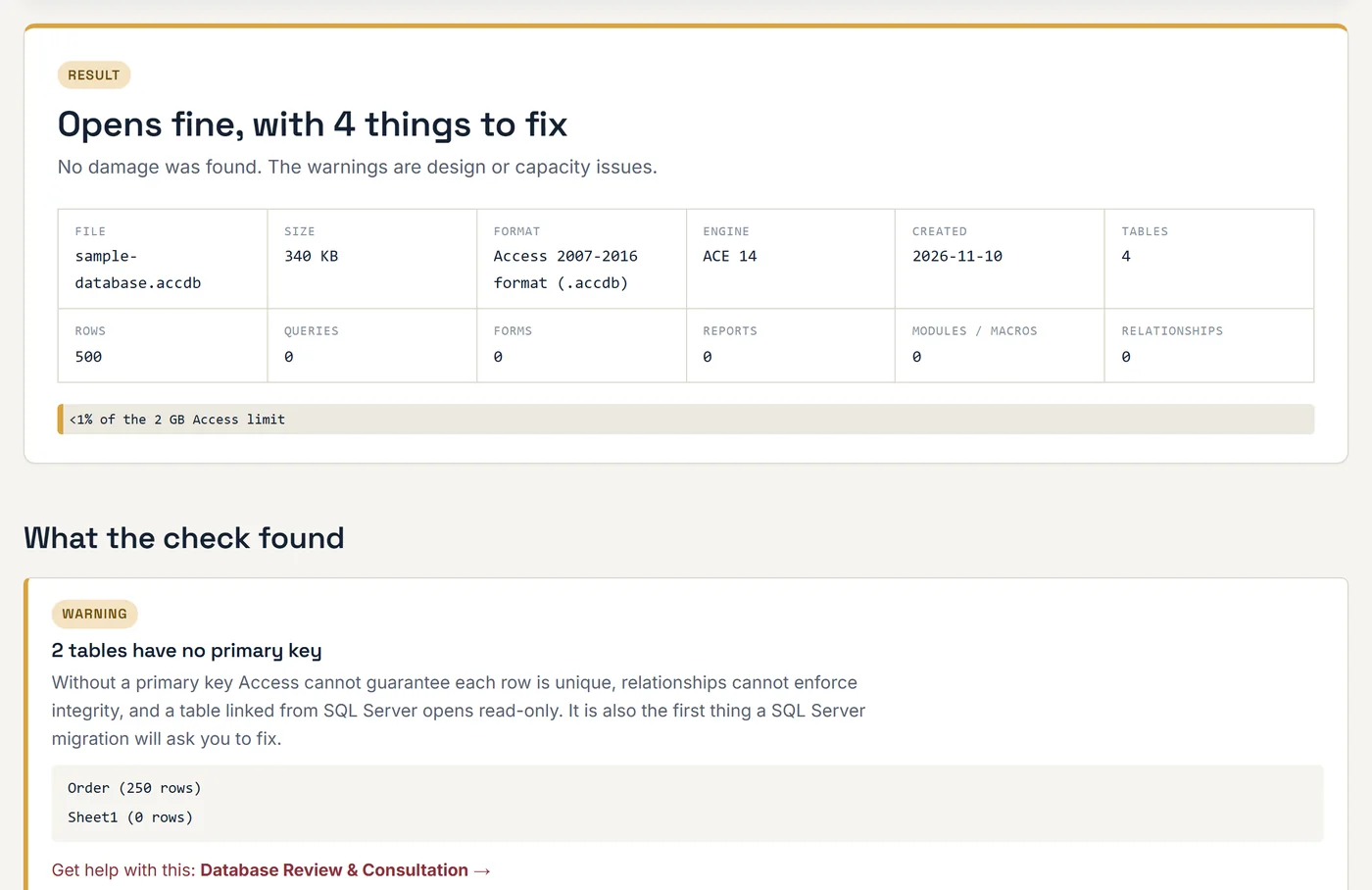
Lists every table without one. These are the tables that go read-only when linked to SQL Server.
-
CHK-06
Migration blockers
Attachment, multi-value, calculated and OLE fields, which do not survive a move to SQL Server unchanged.
-
CHK-07
Reserved-word names
Fields called Name, Date, Order or Value, and names with punctuation that break queries and VBA.
-
CHK-08
Relationships and structure
Counts relationships, flags the ones that do not enforce referential integrity, and tells you if forms and data share one file.
How to read your results
What each result means in practice, and what to do before you touch the file.
"This file could not be opened"
Every Access file starts with a fixed header, followed by a hidden table named MSysObjects that lists everything in the database. If either one is unreadable, Access shows "Unrecognized database format" and refuses to go further. The usual causes are a PC that lost power during a save, a network drop while the file was open over Wi-Fi or VPN, or a sync tool such as OneDrive or Dropbox copying the file while someone was still working in it.
Before you try anything, do these in order:
- Copy the file. Work only on the copy. A failed repair can throw away the damaged rows for good.
- Look for a leftover lock file. A .laccdb or .ldb file next to the database, with nobody in it, can be deleted.
- Run Compact & Repair on the copy. Open Access with no database loaded, go to Database Tools, choose Compact and Repair Database, and pick the copy.
- Import into a new database. Create a blank database, then use External Data > New Data Source > From Database > Access and bring the objects across. Tables that fail to import are the damaged ones.
- Check your backups for the newest copy that still opens, so you know how much work is at risk.
If those steps fail, the data is often still recoverable, but it takes page-level work. That is what our Access database repair service does.
"Tables could not be read completely"
This is the more common kind of corruption: the file opens, most tables are fine, and one or two have bad pages. In Access it shows up as #Deleted in a row, a "not a valid bookmark" error, or a form that crashes when you reach a certain record. The report names the tables, so you know where to look. Good rows in a damaged table can usually be copied out to a new table with an append query that skips the bad range.
The 2 GB limit
An Access file cannot grow past 2 GB, and that includes space taken by deleted records until the file is compacted. The gauge in the report shows where you are. Under half is comfortable. Over half, compact a copy and compare the sizes: if the file barely shrinks, the growth is real data and you should plan a move of the tables to SQL Server while there is still room. We cover that in upscaling Access to SQL Server.
Missing primary keys
A table with no primary key lets the same record in twice, cannot sit on the "one" side of a relationship, and becomes read-only when it is linked from SQL Server. Tables imported from Excel are the usual offenders. Adding an AutoNumber ID field and making it the key is safe in almost every case and takes a minute.
Fields that block a SQL Server migration
Attachment fields, multi-value fields (the ones with checkboxes in a drop-down) and calculated fields only exist in Access. The SQL Server Migration Assistant either skips them or converts them into something your forms no longer understand. The report lists each one by table and field name, which is the same list a developer would build on day one of a migration project.
What this check does not cover
It reads tables. Forms, reports, macros and VBA modules are counted but not opened, and query SQL is not analysed. It also cannot repair anything. If the report is clean and Access still misbehaves, the cause is usually a corrupt form or report, a VBA project that needs decompiling, or a multi-user setup problem rather than the data itself.
Questions about the health check
Is my database uploaded anywhere?
No. The page loads a script, and that script reads the file inside your browser tab. Your file, its name and its contents are never sent to our server or to anyone else. The only thing the page reports back is an anonymous count that a check was run, so we know the tool is being used. You can confirm this in your browser's Network tab, or switch off Wi-Fi after the page loads and the check still works. Close the tab and the data is gone from memory.
How do I know if my Access database is corrupt?
The usual signs are an "Unrecognized database format" or "Microsoft Access has detected that this database is in an inconsistent state" message, rows showing #Deleted, a form that crashes on one particular record, or a Compact & Repair that never finishes. This check reads every table row by row and reports which tables fail, so you know whether the damage is in the file header, the system catalog or one specific table.
Can this tool repair a corrupted Access database?
No, and be careful with any web page that says it can. A browser can read an Access file but cannot rebuild damaged pages or indexes. What this check gives you is the diagnosis: what is damaged and what still reads. If the data matters, send the file to someone who does Access database repair by hand, working on a copy.
What happens when an Access database reaches 2 GB?
Writes start failing. Users see "Invalid argument" or "Cannot open database", and the file is often damaged by the failed write. Access does not warn you on the way up. Compact & Repair buys time if the size is mostly bloat. If it is real data, the fix is to move the tables into SQL Server (the free Express edition holds 10 GB per database) and keep Access as the front end.
Can I open an .accdb or .mdb file without Microsoft Access?
Yes. After the check runs, select any table in the list to see its fields and rows, then download it as CSV or Excel. You can also export every table into one Excel workbook. This works on a Mac, a Chromebook or a PC with no Office installed.
Which Access versions and file types does it read?
Everything from Access 97 to Microsoft 365: .mdb, .accdb, and the compiled .mde and .accde versions (their tables are stored the same way). Password-protected .accdb files work once you type the password. A few older encryption methods are not supported, and the report says so instead of guessing.
Does it check my forms, queries, reports and VBA code?
It counts them, but it does not open them. Forms, reports and code are stored in a separate binary format inside the file, and a clean result here does not rule out a corrupt form or a VBA project that will not compile. If the tables pass and Access still crashes, the problem is usually in one of those objects.
How large a file can I check?
The limit is your computer's free memory, because the whole file is held in the browser tab while it is read. Small and mid-sized databases take a few seconds. Very large files need a desktop browser such as Chrome or Edge with a few gigabytes of RAM to spare. If the browser cannot load the file, the page tells you and still reports the size.
Did this work for you?
Your answer goes straight to the person who built the tool. It is not published.
Found a problem you would rather not fix yourself?
Send me the report summary and a line about what the database is used for. I will tell you what it takes to fix.