
Best Access Database Repair Software: 5 Options

If your Access database suddenly shows errors or won’t open, don’t start by working on the only copy. The best access database repair software for you depends on what you need to recover, so here are five named options and the job each fits.
1. DataNumen Access Repair: For broad recovery of damaged Access files
DataNumen Access Repair is a desktop tool for repairing damaged MDB and ACCDB files. It may suit you when the database has broad file damage and you want a tool that aims to recover as much as it can.
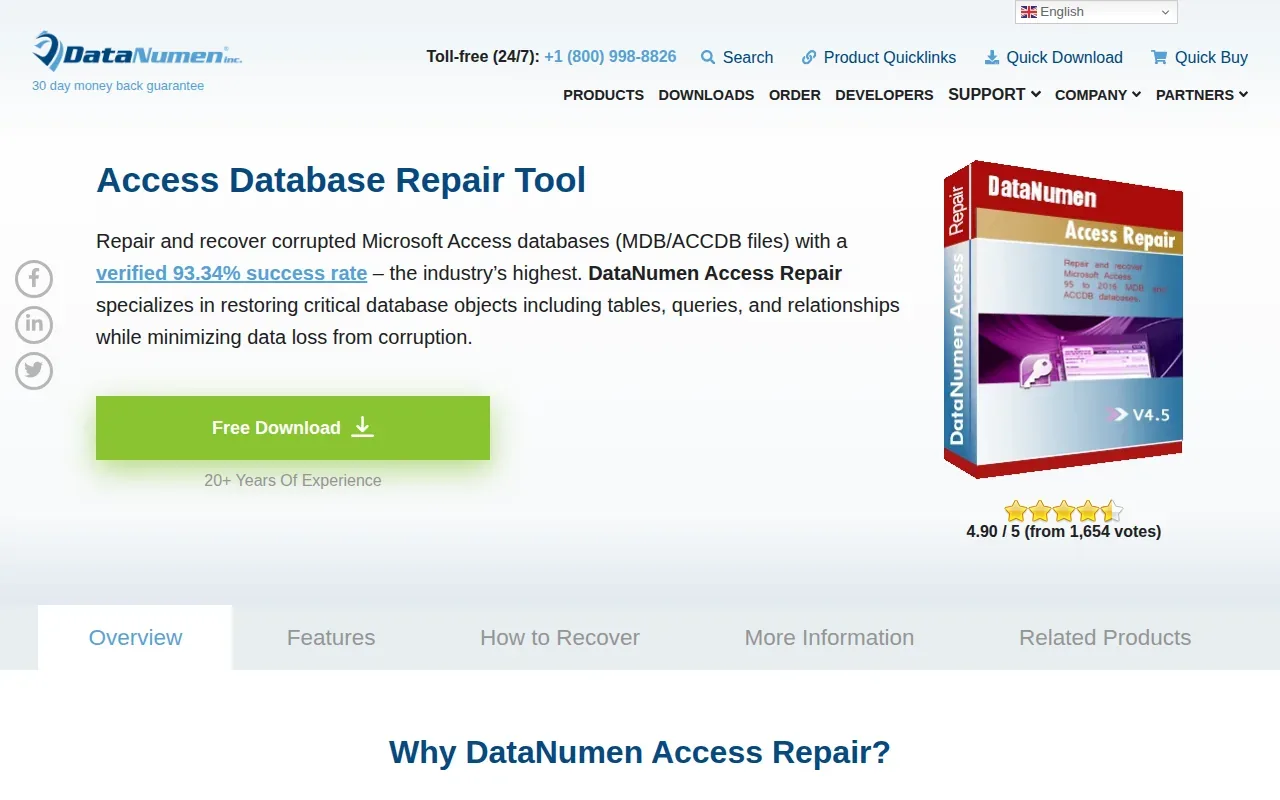
DataNumen Access Repair aims to repair everything recoverable. That broad goal may be relevant when you need to recover more than a few table rows, though the result depends on the damage pattern and database contents.
DataNumen reports a success rate above 93%. Treat that as the vendor’s claim, not a promise about your file. The damage pattern, available copy, and database contents can all affect what a tool can recover.
Before attempting repair, close Access and other apps that could change the file, and work from a copy. After a repair scan, open the resulting file in Access and check that the data you need is present. Keeping the original unchanged gives you a reference if the recovered data needs further review.
The Compact and Repair utility is a useful first reference for minor issues. When that built-in utility can’t open the damaged file, a separate recovery tool may be worth testing on a copy.
2. Cigati Access Database Recovery Tool: For recovering tables and database objects
Cigati Access Database Recovery Tool is an Access-specific recovery option for damaged files when table and object recovery can help a team rebuild faster. It may fit teams looking to recover database items for use in a rebuild, rather than rely on an intact original database.
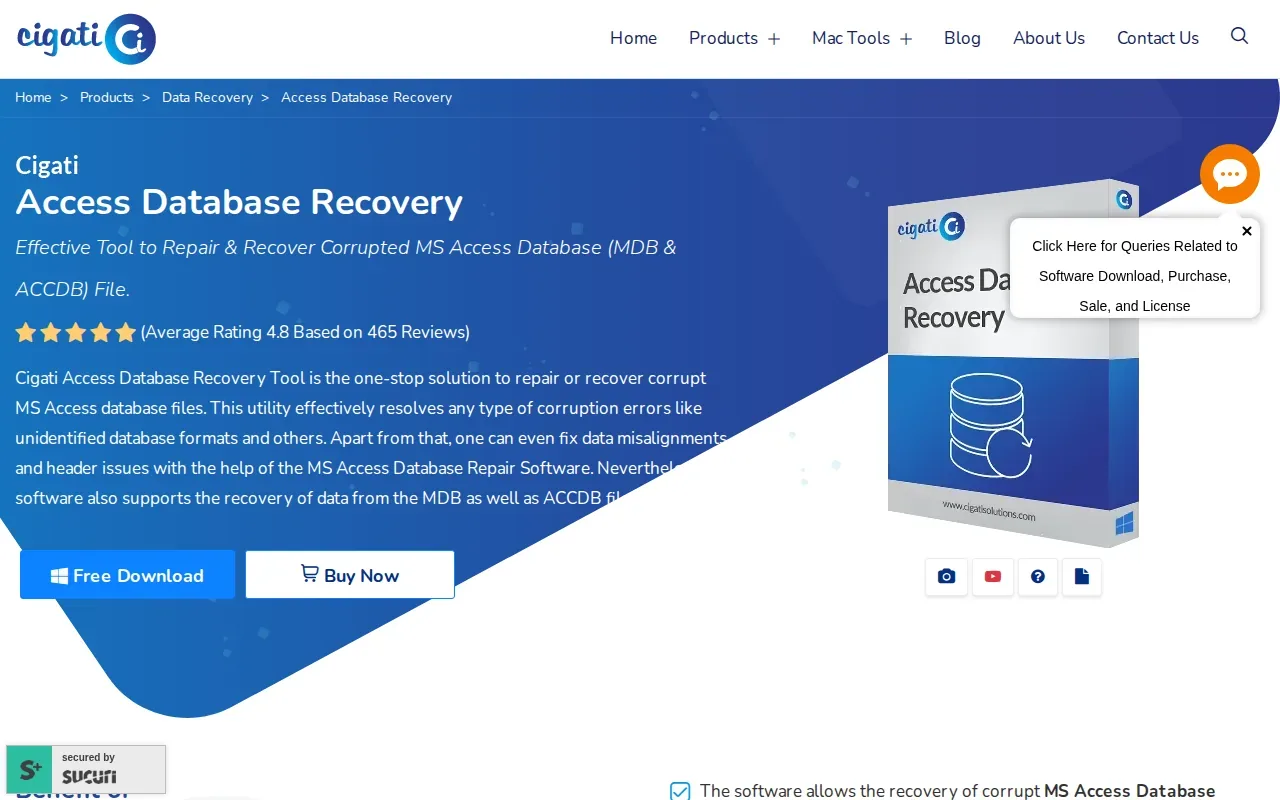
When comparing recovery options, consider whether recovering tables and objects addresses the immediate need. A team that needs to rebuild from a damaged database may find those recovery capabilities relevant, especially when getting usable data back is the priority.
Before choosing a tool, confirm that it supports the damaged file and the recovery needs for the project. Product names alone are not enough to establish that a particular file or recovery task is supported.
After recovery, check that the data needed for the rebuild is present and usable. Reviewing the recovered items before relying on them for daily work can help the team decide whether the result meets its needs.
3. BitRecover Access Recovery Wizard: For selective object-level salvage
BitRecover Access Recovery Wizard is an option for salvaging selected objects from damaged MDB or ACCDB files. It may fit when only a few tables are urgent, and you want to select those items rather than treat the whole database as one recovery job.
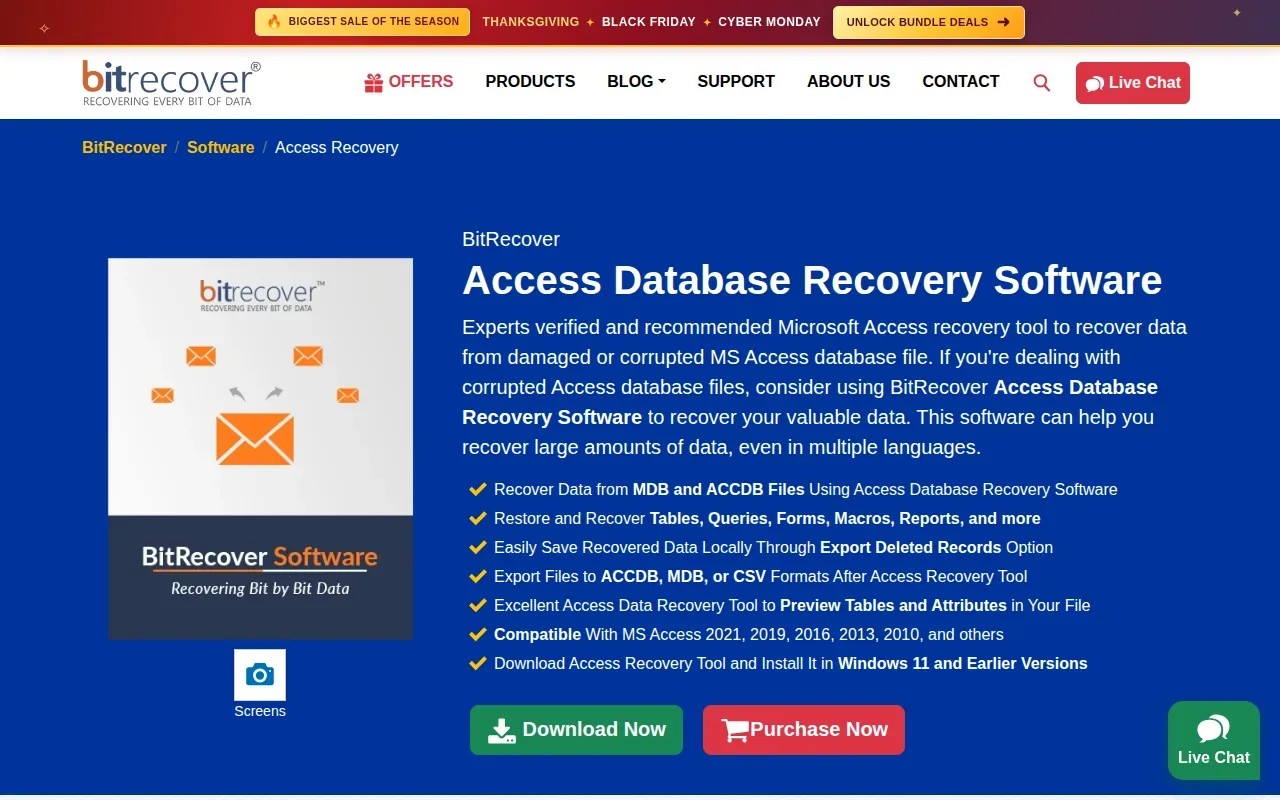
The key distinction is object-level selection. You can focus on specific tables, then export recovered data in multiple formats. That can be useful if the immediate goal is to get usable rows into a clean database, spreadsheet, or another supported destination.
BitRecover describes a preview of scanned items and a choice to save tables as an Access database or as CSV. CSV can be handy for checking rows in a separate application, but it won’t carry the full structure of an Access database. Plan to recreate or verify relationships and other design details in the new file.
The vendor also describes a free demo that lets you inspect the database, with export disabled in the demo. That gives you a way to see whether the scan finds the objects you need before committing to a full recovery workflow.
Selective recovery is a good fit when you know which tables matter most. If you need the original database structure intact, test the output carefully before you choose this route.
4. SysCurve Access Repair Tool: For MDB and ACCDB repair and recovery
SysCurve Access Repair Tool is built for repair and recovery of MDB and ACCDB files. It may suit you when you need to inspect several kinds of database objects or work with a supported split-database setup.
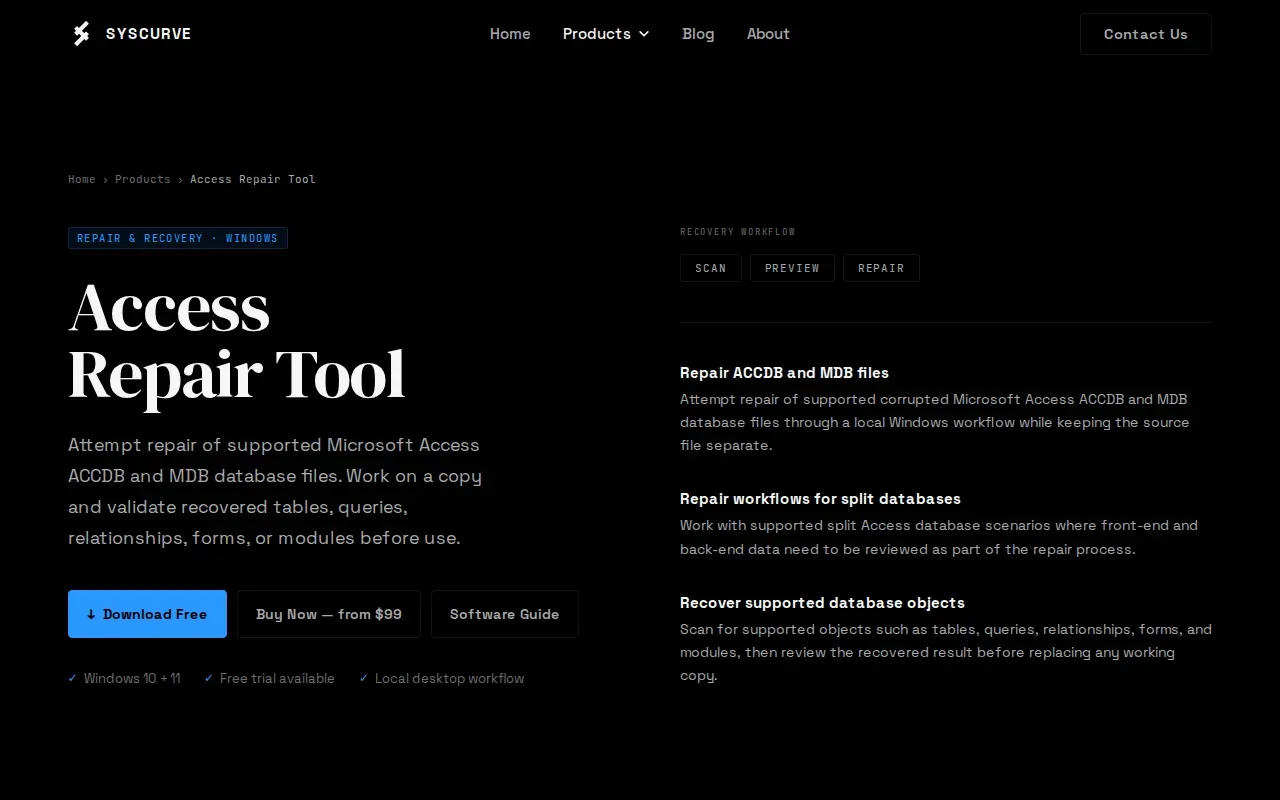
Its recovery scope includes tables, queries, indexes, and deleted data. For a split database, it says the workflow can address linked tables across front-end and back-end files.
That split-database detail matters when staff use a front end for forms and reports while the data sits in a separate back end. A repair of only one file may leave the application unable to reach its tables. Check which file is damaged before you begin, and validate the repaired copy with the normal front-end workflow.
SysCurve describes a local Windows workflow and advises working on a copy, saving to a separate location, then checking the result before replacing anything. That’s a sensible safety rule for any recovery attempt. Keep the original untouched until you’ve confirmed the recovered data meets your needs.
If your main problem is slow performance rather than file corruption, a repair scan may not address the cause. First identify whether the file is damaged or the database simply needs changes to its design or queries.
5. Access Repair Toolbox: For previewing recovered Access data
Access Repair Toolbox is a tool for repairing MDB and ACCDB files, with a preview function to help you check recovered data. It may be a fit when you want to inspect what a scan can recover before deciding whether the result is useful.
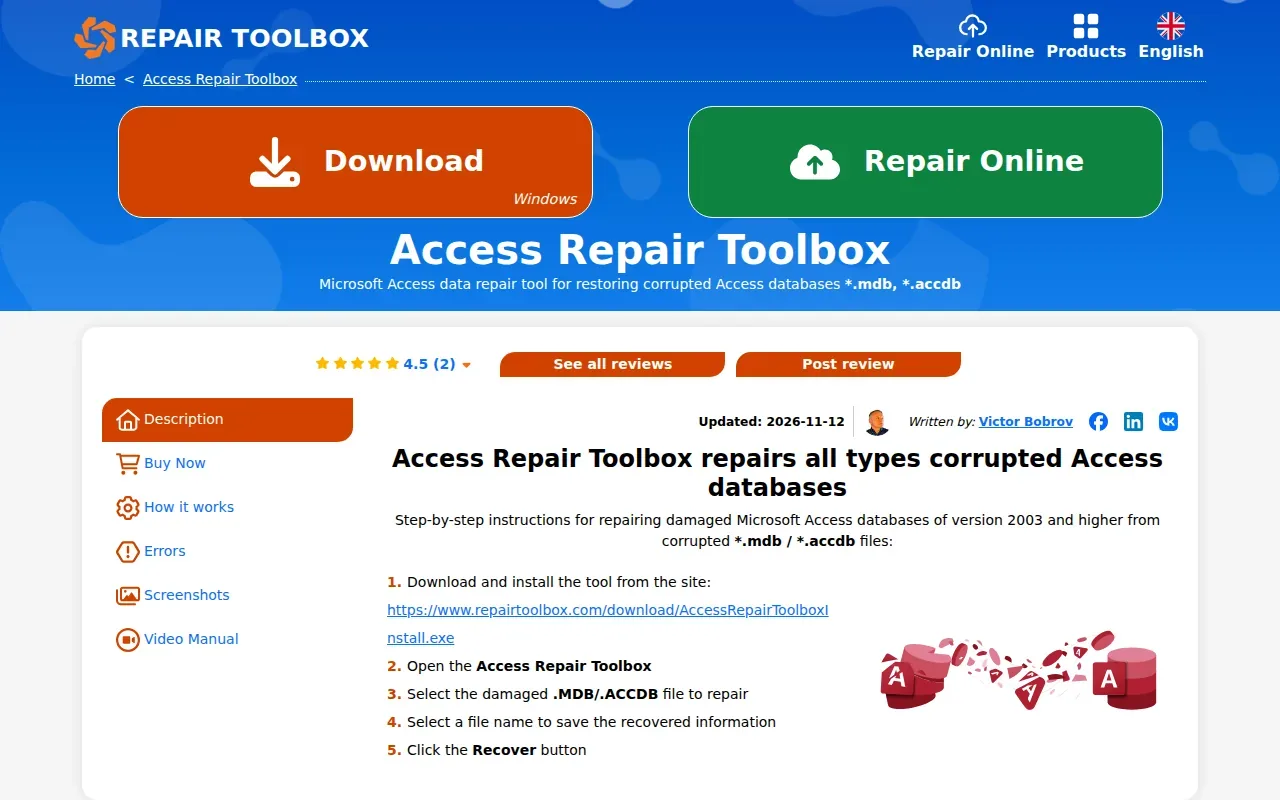
Preview can help answer a basic question early: are the tables or data you need visible in the result? That’s useful when an operations team needs to decide whether to continue with repair or restore a backup and reconcile newer work manually.
Still, a preview is only one check. A table may appear in the result while key links, forms, or other parts of the original application need follow-up. Open the saved copy in Access and test the tasks that matter, such as entering a record or running a daily report.
Use a duplicate file and a separate output location. That gives you room to compare the recovered file with the source and choose a backup if the output doesn’t meet your needs.
Compare the Access Database Repair Software Options
These tools don’t all fit the same recovery job. A useful first filter is the file extension, then the kind of result you need: a repaired database, selected tables, or data you can move into a fresh file.
| Option | Fits best when | Formats | Check before relying on the result |
|---|---|---|---|
| DataNumen Access Repair | You want broad recovery of file contents | MDB, ACCDB | Forms, VBA modules, and macros aren’t supported |
| Cigati Access Database Recovery Tool | You need to recover tables and objects for a rebuild | MDB | Confirm MDB support matches your file |
| BitRecover Access Recovery Wizard | You need to select objects and export recovered data | MDB, ACCDB | Check the exported data in its target database |
| SysCurve Access Repair Tool | You need MDB or ACCDB recovery, including split-file workflows | MDB, ACCDB | Validate the repaired copy before replacing the source |
| Access Repair Toolbox | You want to preview recovered data | MDB, ACCDB | Preview the objects you need and test the saved file |
Microsoft describes Compact and Repair as a built-in way to help prevent or correct database file problems. Try that on a copy when the issue appears minor. If the file won’t open or the utility can’t repair it, a dedicated tool may be the next test. Microsoft Access is used to build and manage desktop databases.
Before buying, check that the tool supports your file format and lets you inspect the kind of output you need. Don’t judge a tool by a long feature list alone. In this market, broad repair claims often say less about whether a specific table or object will come back intact.
Keep a clean source copy. Run the repair on a duplicate, save to a different location, then check a few known records against a backup or another trusted record. Test forms and reports separately. A file that opens isn’t automatically ready for staff to use.
If a repair utility can’t recover the file or you need help deciding whether to repair or rebuild, I handle database troubleshooting through access database repair at MS Access Expert. The quote is free, and I’ll look at the issue before recommending a path.
Frequently Asked Questions
What causes an Access database to become corrupt?
Access file corruption can follow a sudden power loss, a drive problem, a software fault, or an interrupted write. A database shared in a way that leads to competing changes may also run into trouble. Make regular backups, and avoid using the only copy for a repair attempt.
How can I tell if my Access database is corrupt?
Common signs include an error when opening the file, missing or unreadable data, or a database that stops responding during use. A slow database alone doesn’t prove corruption. If Access still opens the file, note the exact behavior and check a backup before trying a repair.
Should I try Compact and Repair before recovery software?
Yes, it can be a sensible first step for a database with a minor issue, but use a copy. If Access can’t open the file or its built-in utility doesn’t fix the problem, consider a dedicated recovery tool. Check the saved output before you replace your working file.
Can Access repair software recover forms and reports?
That depends on the tool. The listed recovery scope varies: some options focus on tables and data, while others describe recovery of additional objects. Check the specific tool’s supported objects, then inspect the recovered copy in Access. Don’t assume that getting table data back restores the whole application.
Is it better to repair or rebuild a damaged database?
Repair may be a fit when you need to regain access to a damaged file or recover records. Rebuilding can make more sense when the recovered file lacks key objects or the database needs a larger redesign. Keep the original and a backup while you compare what the repair actually restores.
Conclusion
For a clear starting point, match the tool to your file format and the objects you need back, then test it on a copy. If you’d rather have a person assess the damage, send me a few lines about what’s going wrong through the MS Access Expert contact form. The quote is free, and you deal with me directly.
Related Services
Repair a Corrupt Database
Learn more →Recover a Database
Learn more →Troubleshoot Database Issues
Learn more →Related Articles
How to Compact and Repair an Access Database
Learn how to compact and repair an Access database, protect your file with a backup, fix common errors, and check that your data still works.
Read article →Fix Access Error 3167: Record Is Deleted (Linked Tables)
Seeing Access error 3167: Record is deleted on linked tables? I explain what causes it, how to fix it, and how to stop it coming back for good.
Read article →Common Causes of MS Access Database Corruption Explained
The common causes of MS Access database corruption, why they happen, and practical steps to prevent losing your data. Plain-English advice from a consultant.
Read article →Still stuck on this?
Send me the details and I'll take a direct look at your database and give you a straight answer.